

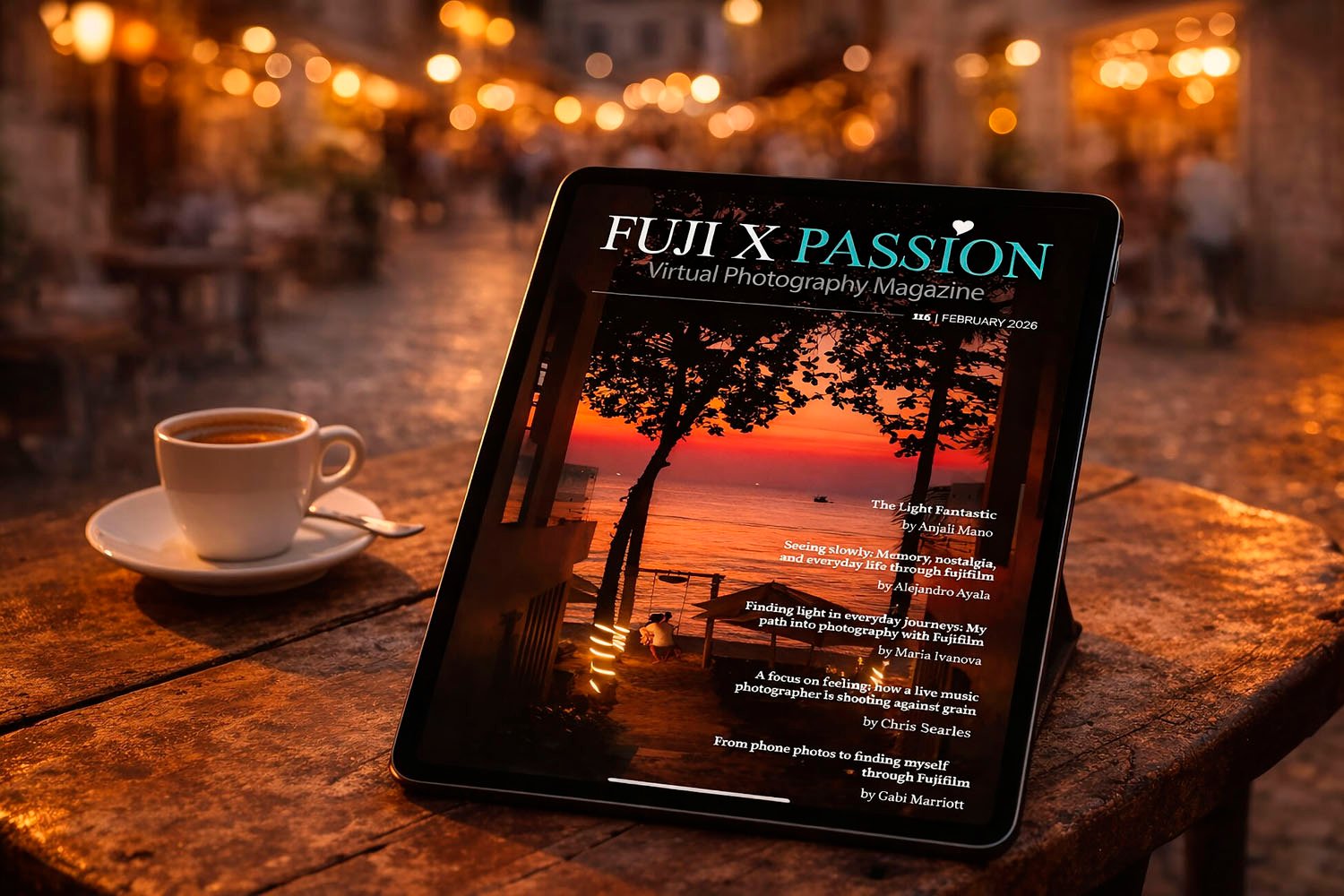
Is your Fuji X Passion collection a mess? Here is how to organise it.
For many digital readers, the convenience of the PDF format is a double-edged sword. While it is the universal standard for high-quality publications, such as the visually stunning Fuji X Passion magazines, it often leads to a cluttered ‘Downloads’ folder rather than a curated library. The challenge isn’t just opening a file, it is building a system that lets you distinguish between what you have devoured and what is yet to be explored, all while ensuring you never lose your place.
The Challenge: From Files to a Library
When managing a growing collection of photography journals, a simple file explorer is insufficient. You need a “digital shelf” that provides:
- Visual Organisation: Seeing covers instead of filenames.
- Status Tracking: Quickly identifying which issues of Fuji X Passion are “Read” versus “Unread”.
- Reading Continuity: The ability to close a 200-page PDF and have the software automatically return to that exact paragraph next time.
Below are the three best free tools to transform your PDF chaos into a professional library on both Mac and Windows.
-
Apple Books (The Native Choice for Mac)
If you are on macOS, you already own one of the most elegant library managers available. Apple Books (formerly iBooks) is not just a store, it is a powerful PDF organiser that syncs across the Apple ecosystem.
- Pros: Seamless interface; iCloud synchronisation across iPhone, iPad, and Mac; no adverts; completely free.
- Cons: Exclusive to Apple devices; limited custom metadata editing.
- Library Management: It uses “Collections”. You can create a specific collection named “Fuji X Passion – Unread” and move them to a “Finished” collection once done.
- Resume Reading: It automatically saves your position and syncs it across all your Apple devices.
- How to Import: Simply drag and drop your PDFs into the Apple Books window, or use File > Import.

-
PDFgear (The Modern All-Rounder for PC & Mac)
PDFgear has recently disrupted the market by offering premium-level features, including AI-powered summaries and full library management, entirely for free.
- Pros: Truly free with no adverts or watermarks; available for both Windows and macOS; incredibly fast rendering for image-heavy magazines.
- Cons: Newer software, so the interface receives frequent (though beneficial) updates.
- Library Management: It features a “Recent” and “Pinned” section. For a magazine series like Fuji X Passion, you can use the “My Library” feature to categorise files and use the star system to mark your favourites or priority reads.
- Resume Reading: It remembers exactly where you left off in every document.
- How to Import: Open the app and click on Add Files or drag your PDFs directly into the main dashboard to build your list.
- Official Link: PDFgear Official Site

-
Sumatra PDF (The Lightweight Specialist for PC)
For Windows users who value speed above all else, Sumatra PDF is a legendary open-source tool. It is famously “svelte”, meaning it opens even the largest, most image-heavy magazines instantly.
- Pros: Open-source and 100% free; no adverts; extremely low memory usage; supports eBooks (EPUB) and Comic Books (CBR).
- Cons: Minimalist interface (no “bookcase” view with large covers); Windows only.
- Library Management: While it lacks a “Finished” checkbox, it provides a “Frequent Reads” home screen. To distinguish your Fuji X Passion issues, users typically organise them into folders (e.g., /Read and /Unread), which Sumatra handles gracefully.
- Resume Reading: It is designed around the “last read” philosophy, instantly returning to your exact zoom level and page.
- How to Import: It works primarily as a viewer. To “add” to its internal list, simply open the files via File > Open.
- Official Link: Sumatra PDF Free Download

Pro-Tip for Fuji X Passion Readers
To keep your library pristine, I recommend a simple Three-Collection System within these apps:
- To Read: For newly downloaded issues.
- Reading: For the 1-2 issues you are currently studying (leveraging the Resume Reading feature).
- Archive/Finished: For completed issues you wish to keep for reference.
By moving your PDFs between these “shelves,” you turn a pile of digital paper into a structured source of inspiration.
The post How to build a Digital Library for your Fuji X Passion collection appeared first on Fuji X Passion.