

The Boring Last Step
If you shoot Fujifilm, chances are your images already look finished the moment they leave the camera. That’s the whole point of the film simulations and custom recipes so many of us obsess over: get the look right in-camera, skip the heavy editing, trust the JPEG.
But “finished” and “ready to publish” aren’t quite the same thing. Before an image goes onto Instagram, into a client gallery, or onto your portfolio, there’s usually one more step: a frame that gives it a gallery feel, and a watermark or credit line that protects your work and adds a bit of professional polish. For a single image, that’s no big deal. For fifty images after a weekend shoot, it becomes the part of the workflow you dread — usually solved by opening Photoshop, fighting with canvas size and export presets, and losing twenty minutes you don’t have.
I build Mac software for photographers under the pixelcatcher brand, and both of the tools I want to show you here came out of exactly that frustration. BorderTool Pro handles framing and passe-partout looks; BatchMark Pro handles watermarking, copyright and EXIF branding. BorderTool Pro lives in your Mac’s menu bar, BatchMark Pro is a standalone app, and both work directly from Lightroom Classic and Capture One. More on that later.
BorderTool Pro Does the Framing
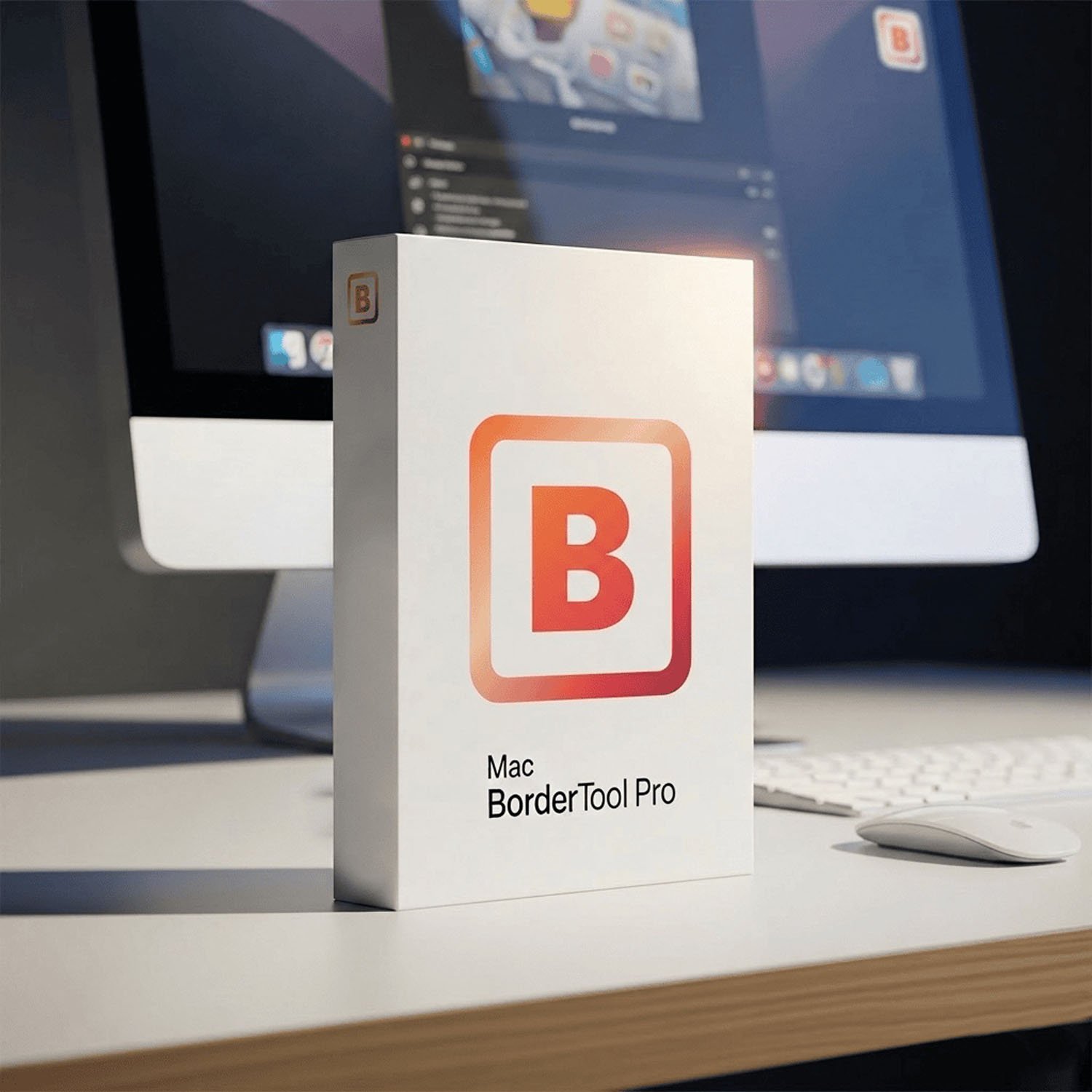
BorderTool Pro is a small menu bar app that does one job extremely well: it puts a frame, passe-partout or gallery-style border around your images — in seconds, in batches of any size, and directly from Lightroom Classic or Capture One’s export flow if that’s where you live.
The basic workflow is almost embarrassingly simple. Pick a preset, or dial in your own border widths, colors and corner style, then drag an image — or an entire folder — onto the menu bar icon. It saves automatically: as a new file by default, or overwriting the originals if you’d rather. There’s a live preview the and pressing the space bar gives you a full-resolution Quick Look before you drag anything in.


More Than Just a Border
- Single and double borders (true passe-partout look), with independently configurable inner and outer frames
- Color Harmony — the app analyses each image and suggests matching border color in seven modes (dominant, vibrant, bright, dark, edge, average, intense), cycled with a single keystroke
- Built-in black & white conversion with several film-style looks, applied to the image only — the border stays whatever color you set
- Drop shadows, rounded or bevelled corners, and a Polaroid mode with an authentic wider bottom edge
- Instagram-ready aspect ratios (1:1, 4:5, 9:16, 1.91:1 and more) that pad the image to the target format instead of cropping it
- Eight one-key presets (⌘ 1–8) that store a complete configuration — colors, widths, units, corners, shadow — so a whole series stays visually consistent
- A genuine batch engine: entire folders, including subfolders, processed in parallel with a progress indicator

For Fujifilm shooters specifically, there’s a detail worth calling out: BorderTool Pro reads and writes HEIC/HEIF directly, so iPhone shots slot into the same workflow, and it preserves EXIF data and color profiles through the process.


BatchMark Pro Does the Watermarking
Where BorderTool Pro handles the frame, BatchMark Pro handles everything you’d normally think of as “watermarking” — but with a lot more precision than that word usually implies. It places your logo, a copyright line, or technical shooting data onto every export, and it reads that data individually from each photo. Like BorderTool Pro, it works directly from Lightroom Classic and Capture One’s export flow too, so it’s not an extra app you have to detour through.
The headline feature is a library of 40 EXIF placeholders — camera, lens, ISO, aperture, shutter speed, date, GPS and more — that you drag into a text layer once. From then on, every image gets its own correct values automatically. No retyping camera settings for each photo in a series, no copy-paste errors.


Built for How You Actually Deliver Files
- Unlimited logo (PNG/SVG) and text layers per preset, each with its own position, size, opacity and rotation, placed on a 9-point anchor grid or freely by X/Y percentage
- Text boxes with background fill, border, rounded or slanted shape and blur — useful for keeping a credit line legible over busy backgrounds
- Eight saved presets (⌘ 1–8) for switching between, say, a heavy client-preview watermark and a subtle portfolio credit
- A real batch engine — one image or a thousand, processed in one pass, originals always left untouched
- GPS and IPTC metadata support, so location data and IPTC fields like copyright and captions can appear in your watermark text, not just standard EXIF
- QR code generation and overlay — embed a scannable code directly on the image, pointing to a gallery link, your website, or a contact card


In practice this covers two very different situations well: sending a wedding or event gallery to a client for selection without giving away unprotected files, and adding a clean, consistent credit line to images you post on Instagram or your own site — where a small “shot on X-T5, XF 35mm f/1.4, ISO 400” line adds a nice bit of authenticity without you typing it out.
The QR code overlay is a newer addition, and it solves a very specific problem well: at event photography with on-site printing — a wedding, a conference, a sports day — you can stamp each print with a QR code that links straight to the online gallery. Guests photograph the code instead of asking where to find their pictures, and every print doubles as a small piece of marketing for the gallery link itself.
The PetaPixel Thing
One thing I still find kind of wild: PetaPixel, a site I’ve read for years, picked up both apps and wrote about BorderTool Pro’s approach to framing, at one point describing it as bringing “high-end digital framing” to the Mac menu bar. Yes, I pitched them — I’m not going to pretend otherwise — but actually hearing back from a site I’ve followed for years, and seeing a one-person indie project land there, was a genuinely awesome.
My apps have also been shaped by the people using it more than by any roadmap I sat down and planned. One buyer updated his five-star review twice within the same week after purchase, simply because so many of the features he’d asked for — HEIF support among them — had already shipped by the time he wrote back. Plenty of other features have come into both apps the same way, because photographers wrote in and said what they actually needed. That loop stays open: I read and answer support emails myself.
Reviews, Basically
A Fujifilm X-E5 shooter who leans on the camera’s film simulations put it simply: BorderTool Pro was “the fast, uncomplicated solution I had been missing,” since his JPEGs already looked finished straight out of camera and he had no interest in a heavy editing detour. Half-jokingly: it’d be pretty great if Fujifilm just built a frame option straight into the camera at some point, right next to the film simulations.
On the BatchMark Pro side, one buyer summed it up as “powerful and straightforward — a great addition to workflow.”
Using Both Together
Used separately, both tools are useful. Used together, they cover the entire last mile of a Fujifilm workflow: BorderTool Pro shapes the image with a frame or passe-partout, BatchMark Pro then adds the branding and technical caption on top — all from Lightroom Classic or Capture One, without a manual detour through a third app.
The integration is genuinely native rather than bolted on, and this is probably the single biggest practical reason to use either tool. In Lightroom Classic, both apps sit under Export → Post-Processing → Open With — so a normal export already comes out framed and branded, with no extra click, no extra app window, and no manual step in between. In Capture One, the same happens through the processing recipe’s “Open With” setting. You keep working exactly the way you already do; the frame and the watermark simply appear on the finished files.
There’s a second detail here that’s easy to miss but genuinely matters for quality: both apps let you set an output format and quality level in their own preferences, independent of what you exported. That means you can export from Capture One or Lightroom as lossless TIFF, and let BorderTool Pro or BatchMark Pro do the conversion down to JPEG as the very last step. JPEG compression then only happens once, at the true end of the pipeline, instead of compounding across two separate exports — export as JPEG, then re-save as JPEG again after framing or watermarking, which visibly degrades quality on anything with fine detail or smooth gradients.
Prefer to work outside a catalogue app entirely? Both tools also run standalone: drag files onto the menu bar icon, or right-click in Finder and choose “Open With.”
Is This Even for You?
- Wedding, event and portrait photographers who need to send client previews that carry a visible copyright line — and need to process hundreds of images in one go
- Travel and landscape photographers building a consistent portfolio or Instagram feed, where a recognisable frame style and camera data become part of the brand
- Anyone who shoots Fujifilm JPEGs and wants the post-camera part of the workflow to be just as fast as the in-camera part
- What it’s deliberately not for: retouching, compositing, or anything Photoshop already does better. These are single-purpose tools, and that focus is exactly why they’re fast.
No Subscription, No Cloud, No Catch
Both apps are native Mac software, run as Universal Binaries on Apple Silicon and Intel, and process everything locally — no uploads, no cloud, no account. Both are one-time purchases at €39 each. There’s no subscription, and nothing stops working if you decide not to pay again next year.
- BorderTool Pro — macOS 11+, includes an Apple Photos Extension for framing images directly inside Apple Photos
- BatchMark Pro — macOS 13+, built specifically around the Lightroom Classic and Capture One export flow
Go Try Them
BorderTool Pro also offers a free trial: you can process up to 15 images at full quality before the trial adds a watermark to further exports, so you can properly test the workflow on your own photos before buying. BatchMark Pro is currently available as a direct purchase only — a few people have asked why there’s no trial for it yet, and the honest answer is that building one properly isn’t a small job, and my focus so far has been on shipping new features instead. It’s not off the table; a trial version may well show up at some point.
Fuji X Passion readers get 10% off both tools with the code FUJIXPASSION10 at checkout.
BorderTool Pro: pixelcatcher.de/en/produkt/mac-bordertool-pro
BatchMark Pro: pixelcatcher.de/en/produkt/batchmark-pro
The post From SOOC to actually ready to post appeared first on Fuji X Passion.